
Reference link: <http://www.krizna.com/ubuntu/setup-ftp-server-on-ubuntu-14-04-vsftpd/>
FTP is used to transfer files from one host to another over a TCP network. This article explains how to set up an FTP server on Ubuntu 14.04.
There are three popular FTP server packages: Pure-FTPd, vsftpd, and ProFTPD. This guide uses vsftpd, which is lightweight and has a smaller attack surface.
Table of Contents
Setup FTP server on Ubuntu 14.04
Step 1: Update repositories.
sudo apt-get updateStep 2: Install the vsftpd package.
sudo apt-get install vsftpdStep 3: Open /etc/vsftpd.conf and make the following changes.
Uncomment these lines:
write_enable=YES
local_umask=022
Uncomment this line to prevent users from accessing folders outside their home directories:
chroot_local_user=YESAdd the following line at the end of the file:
allow_writeable_chroot=YESAdd these lines to enable passive mode:
pasv_enable=Yes
pasv_min_port=40000
pasv_max_port=40100
Step 4: Restart the vsftpd service.
sudo service vsftpd restartStep 5: The FTP server will now listen on port 21. Create a user with the following commands. Use the /usr/sbin/nologin shell to prevent FTP users from accessing a normal shell session.
sudo useradd -m john -s /usr/sbin/nologin
sudo passwd john
Step 6: Allow login access for the nologin shell. Open /etc/shells and add this line at the end:
/usr/sbin/nologinNow try to connect to the FTP server with this username on port 21 using WinSCP or the FileZilla client. Confirm that the user cannot access folders outside the home directory.
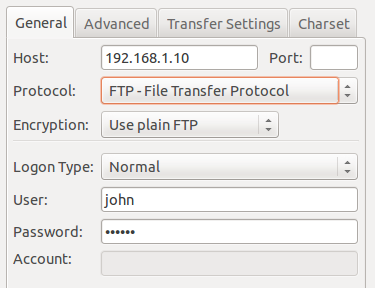
Using plain FTP on port 21 is a significant security risk. It is highly recommended to use SFTP instead. Continue below for SFTP configuration.
Secure FTP (SFTP)
SFTP is commonly called “Secure FTP” and uses the SSH File Transfer Protocol. It requires the openssh-server package. Install it if it is not already installed:
sudo apt-get install openssh-serverStep 7: Create a new group named ftpaccess for FTP users.
sudo groupadd ftpaccessStep 8: Edit /etc/ssh/sshd_config.
Find and comment out this line:
Subsystem sftp /usr/lib/openssh/sftp-serverAdd these lines at the end of the file:
Subsystem sftp internal-sftp
Match group ftpaccess
ChrootDirectory %h
X11Forwarding no
AllowTcpForwarding no
ForceCommand internal-sftp
Step 9: Restart the SSH service.
sudo service ssh restartStep 10: Follow these steps when creating users for SFTP access.
Create the user john with the ftpaccess group and the /usr/sbin/nologin shell:
sudo useradd -m john -g ftpaccess -s /usr/sbin/nologin
sudo passwd john
Change ownership of the home directory:
sudo chown root /home/johnCreate a writable folder inside the home directory and change ownership of that folder:
sudo mkdir /home/john/www
sudo chown john:ftpaccess /home/john/www
Now try to connect to the server using SFTP on port 22. Confirm that users can upload files to the www directory and cannot access folders outside the home directory.
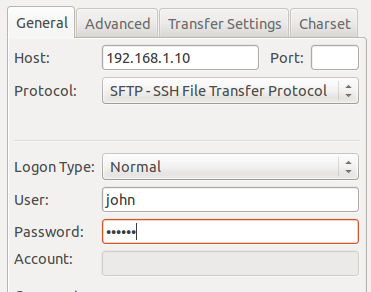
If you want to use both FTP and SFTP together, follow Step 10 when creating users. For existing users, move them to the ftpaccess group and create the folder structure with the correct ownership:
sudo usermod john -g ftpaccess -s /usr/sbin/nologin
sudo chown root /home/john
sudo mkdir /home/john/www
sudo chown john:ftpaccess /home/john/www
Now john can upload files to the www folder using both FTP and SFTP.