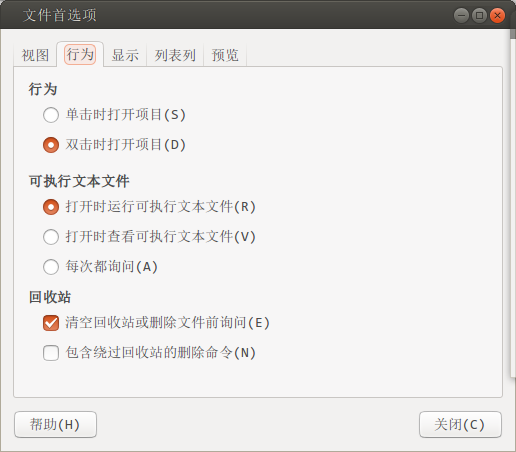
On Ubuntu, “double-clicking a script” crosses at least four layers: the script and its interpreter, Unix execute permissions, mount options, and the launch policy of the file manager or desktop. Current GNOME Files can still offer choices to run, display, or ask about executable text files, but menus and defaults vary by Ubuntu release, desktop, and file manager. A terminal is always the most diagnosable entry point. When a stable GUI entry is genuinely useful, create a standard desktop launcher for a reviewed local script.
This maintained edition was rewritten in 2026. The 2014 source contains only a preferences path and two screenshots from an older Nautilus interface. Its complete body is preserved in the inert archive at the end and is not a guarantee about the current interface.
Table of Contents
1. Decide whether the script should run
A shell script is a program, not a read-only document. Before double-clicking, establish its source, purpose, expected inputs and outputs, network access, write paths, and rollback. A script from a download, chat attachment, email, or shared drive should not run merely because its icon looks ordinary.
Start with read-only inspection; the path is a placeholder:
file -- script.sh
stat -- script.sh
sed -n '1,80p' -- script.sh
sed -n '1l' -- script.sh
sha256sum -- script.sh
Read the complete file, not only its first 80 lines. A hash identifies bytes; it proves provenance only when compared with a value published independently by a trusted distributor. Do not use curl ... | sh, and do not hand an unknown script to sudo as a test.
2. Interpreter, shebang, and line endings
When a script is executed directly, its first-line shebang selects the interpreter. Match it to the language actually used. A Bash script can begin:
#!/usr/bin/env bash
set -u
printf 'script=%sn' "$0"
printf 'working_directory=%sn' "$PWD"
printf 'argument_count=%sn' "$#"
Use #!/bin/sh only for a script that truly conforms to the target system's sh. /usr/bin/env bash finds Bash in the launch environment's PATH, which helps when installation paths vary but also requires a trusted PATH. A managed fixed host may use an absolute interpreter path according to its deployment policy.
^M after a bad interpreter message commonly indicates CRLF line endings. Prove that with file and sed -n '1l', then convert a copy in a trusted editor. Do not rewrite a batch of files before reading them fully. Calling bash script.sh bypasses the shebang, so it is only a diagnostic for a script already confirmed to be Bash; it does not prove that direct execution is configured correctly.
3. Grant execute permission only to the owner
Save the reviewed script in a local, owner-controlled location that other users cannot modify, such as $HOME/.local/bin/double-click-demo. Then add only the owner's execute bit:
install -d -m 700 -- "$HOME/.local/bin"
chmod u+x -- "$HOME/.local/bin/double-click-demo"
ls -l -- "$HOME/.local/bin/double-click-demo"
"$HOME/.local/bin/double-click-demo"
printf 'exit_status=%sn' "$?"
Do not use chmod 777, and do not use sudo merely to add your own execute bit. An x bit on the file is not enough: parent directories require search permission, the filesystem may be mounted noexec, and ACLs or security policy may deny execution. FAT, NTFS, network shares, and archives can have different permission semantics. Installing the script on a local native filesystem is more controlled than repeatedly broadening permissions.
To test a reviewed Bash file that does not yet have an execute bit, you can invoke the interpreter explicitly:
bash --noprofile --norc -- "$HOME/.local/bin/double-click-demo"This avoids the user's Bash startup files, but it does not isolate the script's file, network, or process permissions. It is not a sandbox.
4. Terminal execution is the diagnostic baseline
Running from a terminal preserves standard output, standard error, and the exit status. Change to the working directory the script actually expects, or make the script use absolute paths. Do not assume a double-click gives the same PWD as an interactive terminal.
If the script changes files, first provide a --dry-run or read-only mode and confine output to a new test directory. If there is no rehearsal, backup, or defined rollback, do not run it yet. Scripts that require passwords, administrator privileges, disk partitioning, account changes, network rules, or production data are poor candidates for an unprompted double-click entry.
5. GNOME Files’ direct double-click option
Current GNOME help still describes three policies for executable text files: run when opened, view when opened, or ask each time. The file must also be marked executable in Properties → Permissions. The installed Ubuntu release may place this under Files → Preferences → General/Behavior, or it may use another file manager without the option.
If the choice exists, prefer Ask each time so you can inspect before running. Direct execution obscures the working directory, environment, and error output, and a terminal program may disappear immediately. If the option does not exist, do not change hidden settings or install an old file manager to imitate the screenshots. Use a terminal or the standard launcher below.
6. Create an application launcher for a reviewed script
For a repeatable GUI entry, keep the script at a fixed path that other users cannot modify, then create $HOME/.local/share/applications/lazying-shell-demo.desktop according to the Desktop Entry specification. Replace all three instances of USERNAME with the real local username. Exec does not expand $HOME, nor does it interpret pipes, redirection, or && like a shell.
[Desktop Entry]
Type=Application
Name=Shell Script Demo
Comment=Run the reviewed local demo in a terminal
TryExec=/home/USERNAME/.local/bin/double-click-demo
Exec=/home/USERNAME/.local/bin/double-click-demo
Path=/home/USERNAME
Terminal=true
Icon=utilities-terminal
TryExec lets the desktop hide or ignore the entry when the target is absent or not executable. Path fixes the working directory, and Terminal=true preserves a terminal interface. A path containing spaces must be quoted under the Desktop Entry rules, not arbitrary shell escaping. A controlled path without spaces is simpler.
After saving it in a text editor, inspect Exec, TryExec, and Path line by line. If desktop-file-utils is installed, validate read-only and test from the application menu:
desktop-file-validate -- "$HOME/.local/share/applications/lazying-shell-demo.desktop"
gtk-launch lazying-shell-demo
No output from desktop-file-validate usually means the syntax passed; it does not establish that the script is safe. GNOME Shell may need to re-index or begin a new login session before displaying a new application. A launcher copied onto the desktop may also require an Allow Launching action from the desktop extension. Grant that only to the file you just reviewed; do not bulk-trust downloaded desktop files with metadata commands.
7. Why GUI and terminal environments differ
An application launcher normally does not read interactive-shell aliases, functions, or every startup file. PATH, locale, proxies, the display session, and the credential agent can differ as well. A script should:
- use verified absolute paths for external tools or establish a small trusted
PATH; - handle its working directory explicitly rather than treating the launch location as the script directory;
- quote every argument that might contain spaces or wildcard characters;
- write expected failures to the terminal or a controlled log and return a nonzero status;
- keep secrets out of the script, launcher, command-line arguments, and public logs.
Do not splice untrusted text into Exec, and do not wrap user input in sh -c merely to obtain shell syntax. If files must be passed as arguments, read the Desktop Entry field-code rules and validate their count, type, ownership, and allowed directories inside the script.
8. Evidence matrix for failures
| Symptom | Inspect first | Do not do |
|---|---|---|
| Double-click opens an editor | File-manager policy, execute bit, current desktop version | Do not assume a 2014 screenshot matches today's menu |
Permission denied | File/parent permissions, ACL, noexec, filesystem type | Do not use chmod 777 or root to bypass the boundary |
bad interpreter | Shebang path, CRLF, installed interpreter | Do not switch to Bash blindly and hide a language mismatch |
| Terminal works, GUI fails | PWD, PATH, locale, session bus, display environment | Do not copy the whole interactive environment into the launcher |
| Window closes immediately | Terminal=true, direct terminal run, exit status and stderr | Do not add an infinite sleep to conceal the error |
| Application entry is absent | Desktop Entry syntax, filename/application ID, session indexing | Do not bulk-trust every .desktop file |
| External drive is readable but not executable | Mount options, permission model, organization policy | Do not remount executable and ignore the trust boundary |
Begin read-only diagnosis with these commands. The output can contain usernames and paths; redact it before public sharing:
namei -l -- "$HOME/.local/bin/double-click-demo"
findmnt -T -- "$HOME/.local/bin/double-click-demo"
head -n 1 -- "$HOME/.local/bin/double-click-demo"
journalctl --user -b --since "10 min ago" --no-pager
Some minimal systems lack namei, findmnt, or a user journal. A missing command is evidence about the environment; do not install an arbitrary package just to make every checklist line green.
9. Reversible disablement and rollback
Disable the launcher first, then remove the script's execute bit. No file deletion is required:
ScriptPath="$HOME/.local/bin/double-click-demo"
LauncherPath="$HOME/.local/share/applications/lazying-shell-demo.desktop"
test ! -e "$LauncherPath.disabled" || exit 1
mv -- "$LauncherPath" "$LauncherPath.disabled"
chmod u-x -- "$ScriptPath"
After refreshing the application menu or starting a new login session, confirm that the entry is gone. If the script already changed data, accounts, or system configuration, removing its execute bit cannot undo those effects. Use the application-level recovery plan that was defined and tested before execution.
10. Stop conditions
- The script's source, complete content, interpreter, or expected side effects cannot be explained.
- It asks for
sudo, a password, a token, disabled security controls, or production-data changes without approval and rollback. - It can run only after globally broadening permissions, making an external drive executable, or bulk-trusting launchers.
- Terminal execution fails while the GUI hides the error; repair the terminal path first.
- Other users can replace the file, it lives in a synchronized/shared location, or it may change while launching.
- The desktop, file manager, or organizational policy differs from this guide and no current official documentation supports the method.
Escalate these cases to the script maintainer or system administrator. A convenience entry must not widen the script's permissions or trust boundary.
11. Official references
- GNOME: File manager behavior preferences
- GNOME: Set file permissions
- GNU Bash: Shell Scripts
- freedesktop.org: Desktop Entry Specification
- freedesktop.org: XDG Base Directory Specification
- POSIX.1-2024: chmod
The references were checked on 2026-09-01. Ubuntu, GNOME Files, desktop extensions, and organizational policies change; use the installed version's help and current official documentation before acting.
12. Original 2014 archive (provenance only)
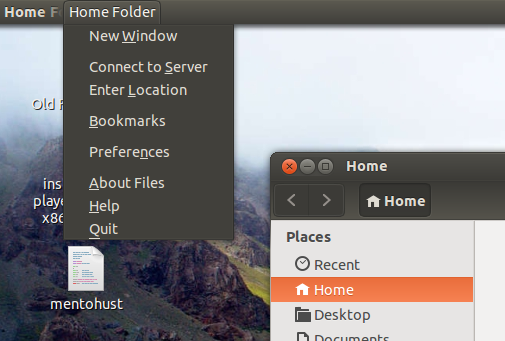
The following fence preserves the complete visible source_export body verbatim. No trailing-whitespace normalization, link removal, or private-value redaction was needed. The old Nautilus menu and screenshots are inert historical evidence, not a guarantee about the current interface.
~~~~markdown
打开一个文件夹,单击左上角的Home Folder(主目录)->单击Preferences(首选项)
按照下图所示设置: